



Website builder
Ce guide est en anglais.
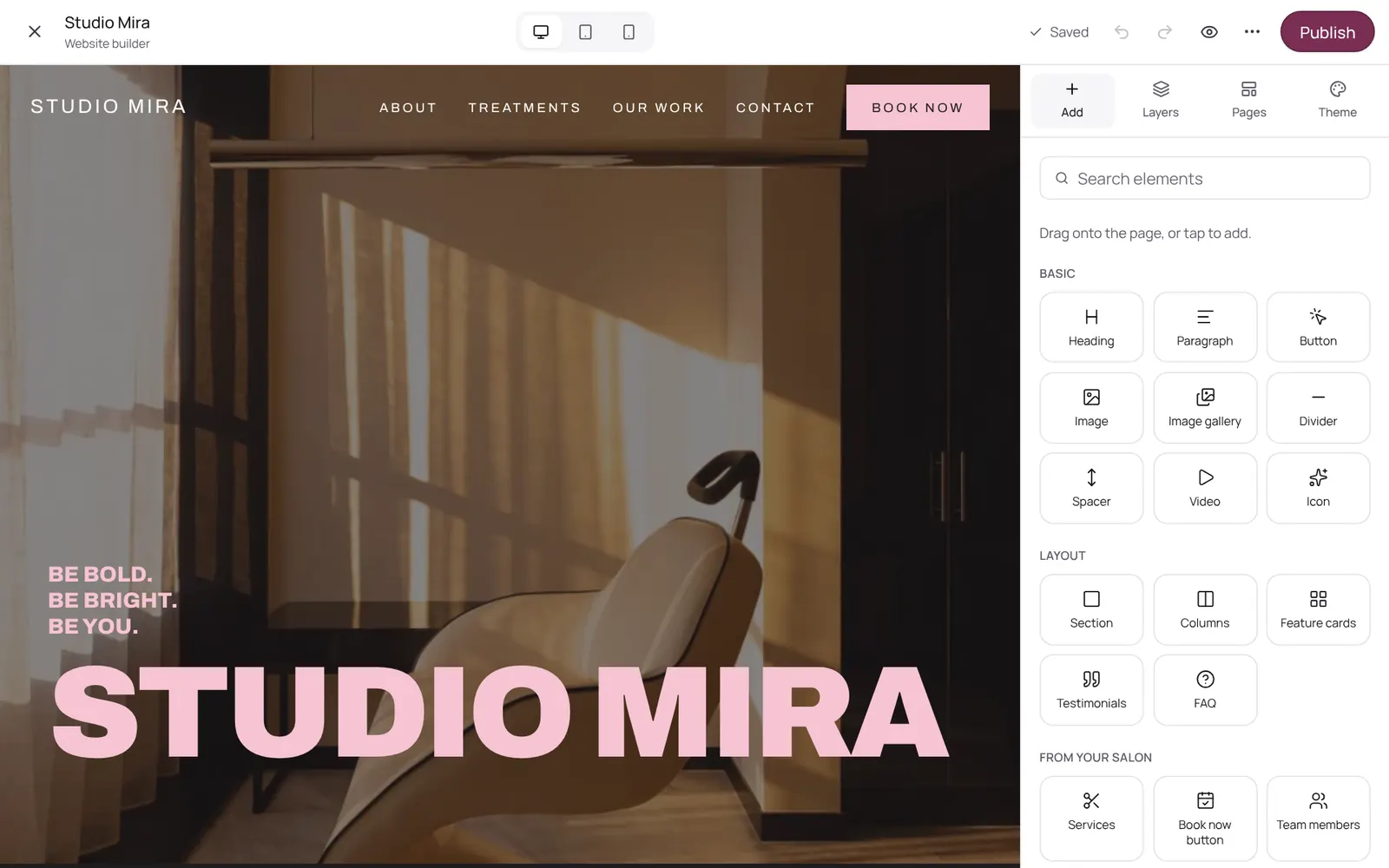
Your own website instead of only a booking page. You edit the site on the page itself: click text and type, drag sections and elements, add your own pages and pick from more than a hundred fonts. Included in Pro and Studio.
Où le trouver
Où le trouverSettings → Online → Website builder
Comment ça marche
- Mini website, Website builder.
- Click a block to select it; click the text again to type.
- The settings of what you select are on the right.
- Drag the handle in the small toolbar to move something, or use Add to place an element or ready-made section.
- Switch between desktop, tablet and mobile at the top.
- Everything saves by itself; visitors only see it after you press Publish.
- The Booking window block works in the builder like on the site: point at a part and tap the pencil to edit the notice, a category or a treatment straight away.
- A gallery can be a loop, grid, slideshow, carousel or mosaic.
- On the Gift card block you change the title, text and button text; empty means the default text in the visitor's language.
Bon à savoir
- Les membres de l’équipe ont besoin de l’autorisation « Business settings ». Le propriétaire la règle dans Settings → Team → Roles and permissions (l’app est en anglais).
- Selon votre formule, cette fonction est incluse ou non. Voir les formules
Guides associés
- Your booking page and mini siteThe page where clients book online. Every salon can set its logo and colour; the menu, header photo and own fonts (the site builder) are in Pro, or separately as an add-on.
- The booking windowThe booking window on your mini website, your own website or the direct booking link: choose a treatment, optionally a team member, a day and time, details, and payment if needed. A thin progress line at the top; back and forward with arrows.
- Online bookingConfirmed right away or approved first, and no-show protection
- New client stopRegular clients keep booking, new clients join a list
Ce guide vous a-t-il aidé ?
Vous êtes bloqué ?
Dans NOZAIA, ouvrez le Support en bas de la barre latérale (sur téléphone : dans le menu sous votre nom). Il sait sur quel écran vous êtes, et s’il ne peut pas aider, votre question part à notre équipe.
Vérifié le 17 octobre 2026