



Deposit for online bookings
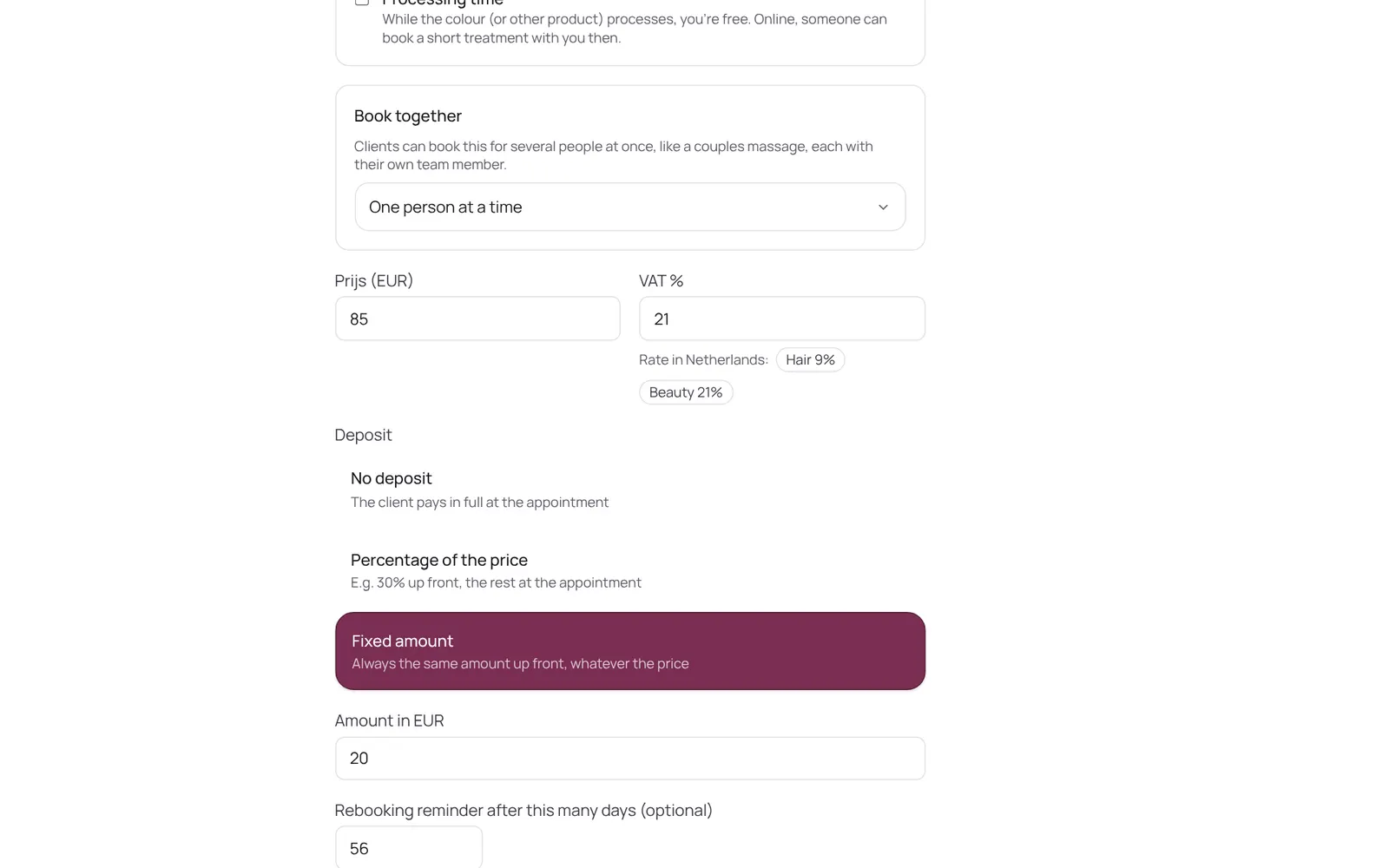
A client pays part or all of the amount when booking online. Set per treatment: none, a percentage or a fixed amount. The money goes straight to your own account, not through NOZAIA.
Where to find it
How it works
- First connect your payment provider (Settings → Payments → Receiving payments).
- Then per treatment at Settings → Sales → Services → the treatment → deposit.
- Who pays the deposit is chosen at Settings → Online → Online booking → Who do you ask a deposit from: Everyone, Only new clients (anyone who has been before books without one, recognised by email, phone number or logging in), or New clients and anyone who missed an appointment before.
Good to know
- Team members need the permission “Services and prices”. The owner sets this under Settings → Team → Roles and permissions.
Set this up first
If something doesn't work
I can't set a deposit.
A deposit only works once your payment provider is connected. In countries where NOZAIA can't offer online payments (China, South Korea, Serbia) deposits don't exist; the subscription is 15% cheaper there.
A regular client didn't have to pay a deposit.
Check Settings → Online → Online booking → Who do you ask a deposit from. If it says Only new clients, anyone who has been before books without a deposit. Choose Everyone if you want it from every client.
Related guides
- Creating or changing a treatmentA treatment has a name, a category, a price, a duration and a buffer. The duration is the time with the client; the buffer is the time after it to tidy up or prepare, which the calendar keeps free but the client doesn't see. Also: a photo (optional; it then shows with the treatment on your mini website and in the booking screen, and without a photo nothing shows), who does it, extras and finishes, a calendar colour, a deposit, a from-price and whether it can be booked online.
- CheckoutChecking out an appointment or a separate sale: the cart, discount, a gift card or stamp card, and the payment method (card, cash, transfer, QR code, or split). An invoice is made.
- Paying with a QR code at the counterThe client scans a QR code with their own phone and pays online, with your own payment provider (Stripe or Sentoo). It can also be shown on your own phone.
Did this guide help?
Still stuck?
In NOZAIA, open Support at the bottom of the sidebar (on your phone: in the menu under your name). It knows which screen you're on, and if it can't help, your question goes to our team.
Last checked 17 October 2026