



Creating or changing a treatment
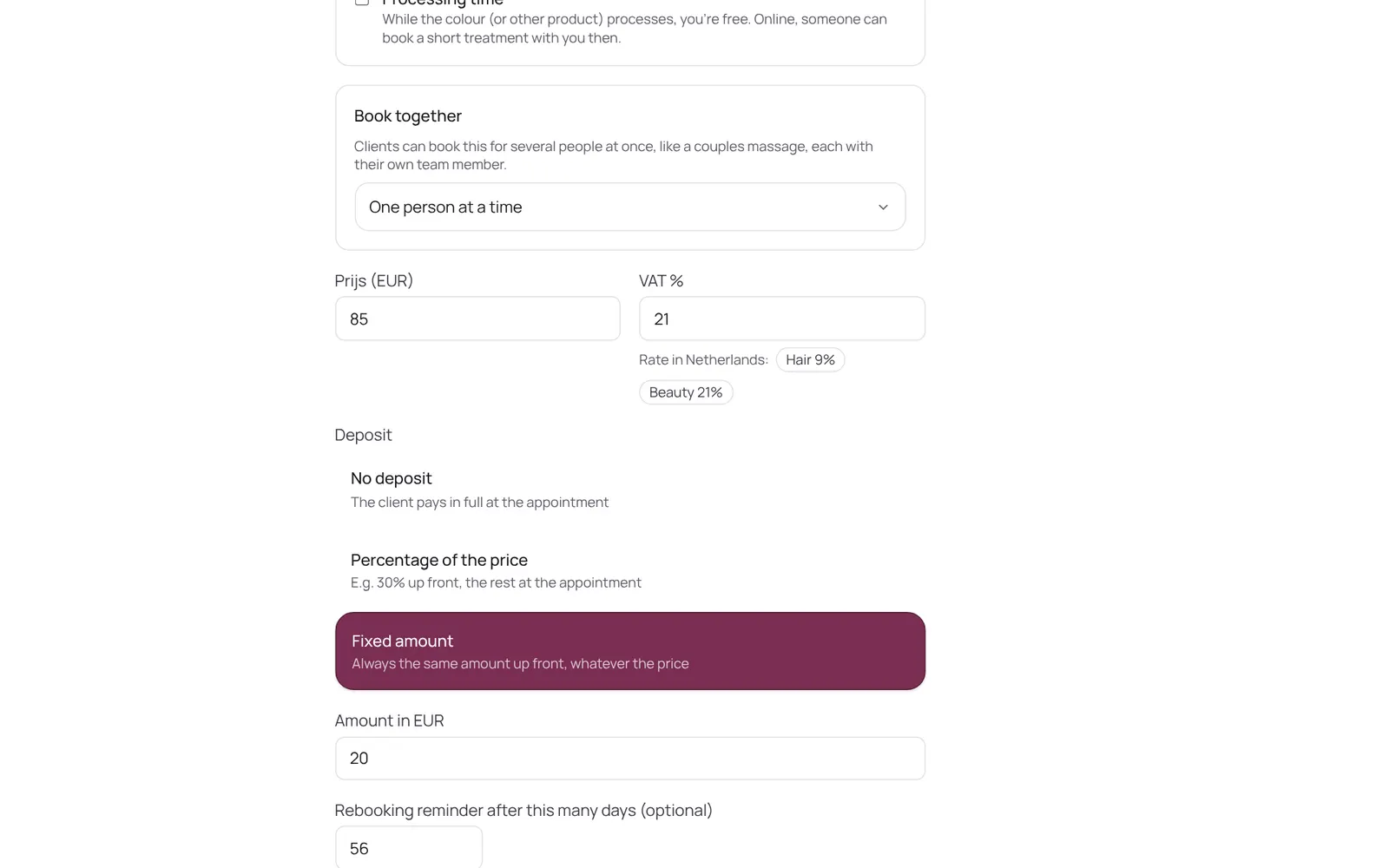
A treatment has a name, a category, a price, a duration and a buffer. The duration is the time with the client; the buffer is the time after it to tidy up or prepare, which the calendar keeps free but the client doesn't see. Also: a photo (optional; it then shows with the treatment on your mini website and in the booking screen, and without a photo nothing shows), who does it, extras and finishes, a calendar colour, a deposit, a from-price and whether it can be booked online.
Where to find it
How it works
- Sidebar → Catalog → Service menu, then Add → A single treatment.
- Tap an existing one to open it.
- If it isn't online, check that Active is on and that someone is ticked under Who does this treatment.
- For colour: switch on Processing time and fill in after how many minutes it starts and how long it lasts.
- You're free then, and a short treatment can be booked online in that gap; in the calendar it shows as hatched.
Good to know
- Team members need the permission “Services and prices”. The owner sets this under Settings → Team → Roles and permissions.
If something doesn't work
My treatment isn't on the booking page.
Switch Active on and tick at least one team member under Who does this treatment who is also on the shifts. Without someone who does it and is working, there are no times.
Related guides
- Extras and finishes (options)What a client can choose with a treatment: a finish (French or Baby Boomer) or something extra (nail art). An option group is a question with choices. Pick one or pick several, and optionally required. Each choice has its own price, its own extra time and who does it. The client picks them when booking online, and at the desk you pick them in the booking panel. What's already booked keeps the price of that moment.
- Who does this treatmentPer treatment you choose which team members do it. Only they can be booked online for it, and in the booking screen they come first.
- Surcharges and discounts (price rules)Rules that adjust the price automatically: a surcharge in the evening or at weekends, or a discount on a quiet part of the day. A fixed amount or a percentage, on chosen days and times, optionally only with certain team members, treatments or only online. The client sees the surcharge when choosing a time. Per rule you choose whether it counts towards commission and whether it is included in a refund.
- Bundles and packagesA bundle is a combination of at least two treatments that the client books as one appointment, with one price. Handy for a fixed combination clients always book together.
Did this guide help?
Still stuck?
In NOZAIA, open Support at the bottom of the sidebar (on your phone: in the menu under your name). It knows which screen you're on, and if it can't help, your question goes to our team.
Last checked 29 September 2026