



Waitlist
Ce guide est en anglais.
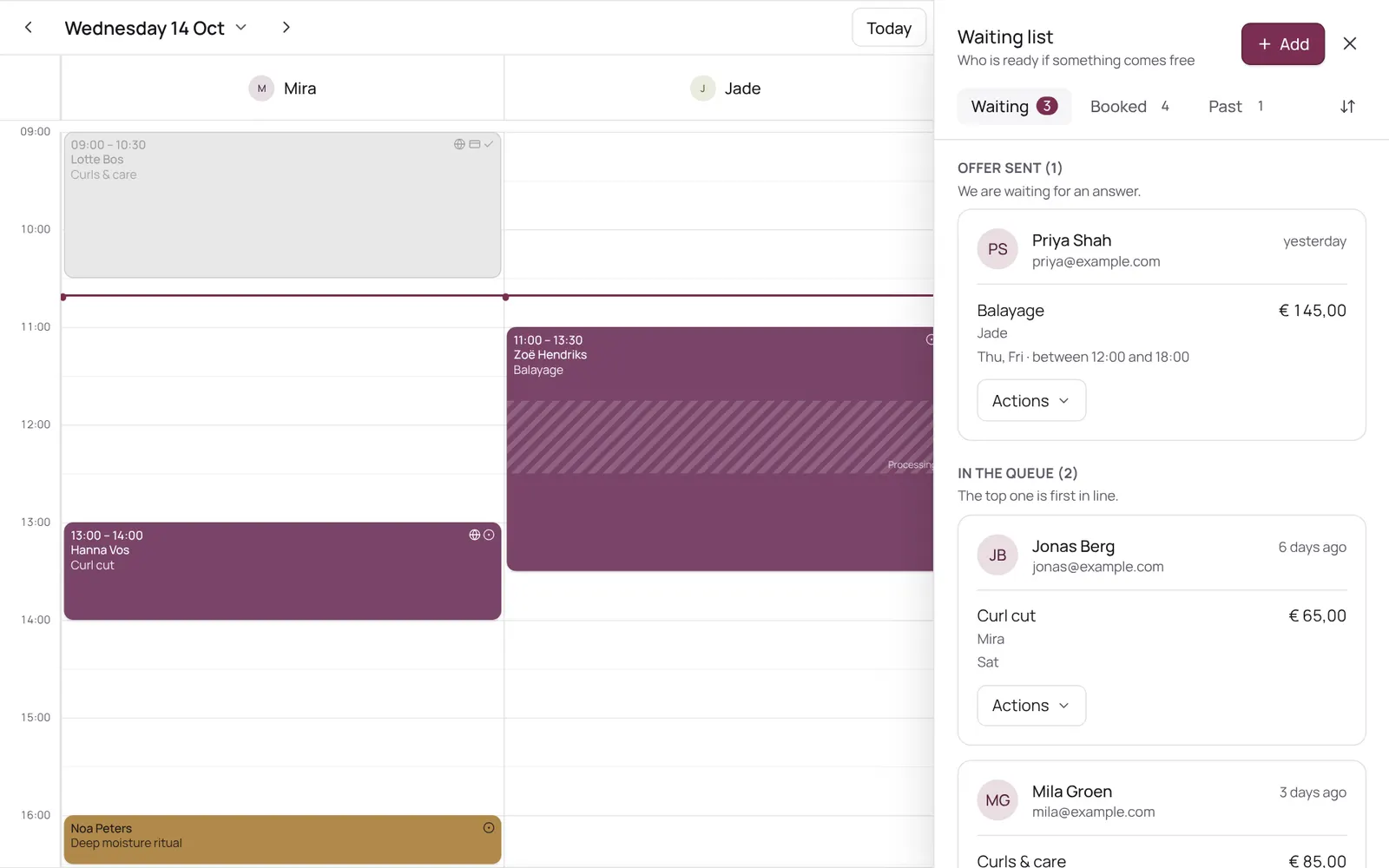
Clients waiting for a spot to open up. When someone cancels, NOZAIA automatically offers that time to the first matching client on the waitlist; the client accepts or declines.
Où le trouver
Où le trouverSettings → Scheduling → Waitlist
Comment ça marche
- Here you see who's waiting, with preferences and contact details; tap someone to call, WhatsApp or email.
- Adding, linking or removing someone is done via the clock icon above the calendar.
- When someone cancels, NOZAIA holds that time and emails the first matching client on the waitlist an offer with a link to accept or decline.
- After 30 minutes without an answer the offer goes to the next; if nobody's left, the time is freed.
- For a treatment that can be booked together, a client can sign up for more people; NOZAIA then also holds a second free team member at the same time.
- A client with the salon as an app also gets the offer as a push notification.
- The email itself is edited under Client emails.
Guides associés
- CalendarYour appointments per day, per 3 days, per week or as a list; your choice is remembered. The day view has a column per team member, the week and 3-day views a column per day. Filter by team member at the top.
- Booking an appointment for a clientScheduling an appointment from the calendar: choose client, treatment, team member, time, and optionally repeat.
- Opening an appointmentThe screen for one appointment: client, treatments, status, checkout, rescheduling, cancelling and no-show.
- Blocked time and time offRecord a break, training, meeting or time off so nothing can be booked in it. A whole day off (type Time off, six hours or more) shows as a bar at the top of the day in the team member's colour.
Ce guide vous a-t-il aidé ?
Vous êtes bloqué ?
Dans NOZAIA, ouvrez le Support en bas de la barre latérale (sur téléphone : dans le menu sous votre nom). Il sait sur quel écran vous êtes, et s’il ne peut pas aider, votre question part à notre équipe.
Vérifié le 17 octobre 2026