



Waitlist
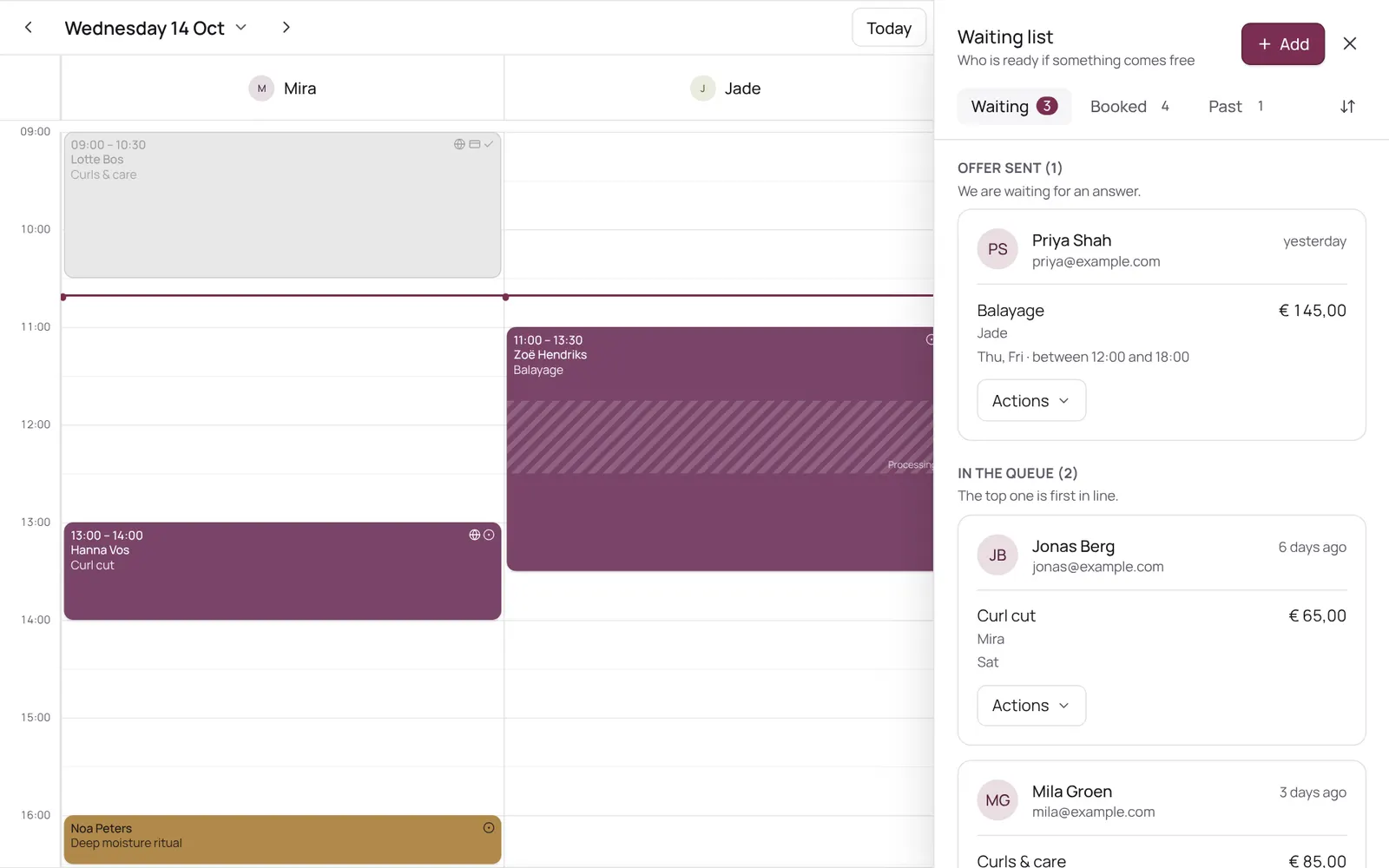
Clients waiting for a spot to open up. When someone cancels, NOZAIA automatically offers that time to the first matching client on the waitlist; the client accepts or declines.
Where to find it
Where to find itSettings → Scheduling → Waitlist
How it works
- Here you see who's waiting, with preferences and contact details; tap someone to call, WhatsApp or email.
- Adding, linking or removing someone is done via the clock icon above the calendar.
- When someone cancels, NOZAIA holds that time and emails the first matching client on the waitlist an offer with a link to accept or decline.
- After 30 minutes without an answer the offer goes to the next; if nobody's left, the time is freed.
- For a treatment that can be booked together, a client can sign up for more people; NOZAIA then also holds a second free team member at the same time.
- A client with the salon as an app also gets the offer as a push notification.
- The email itself is edited under Client emails.
Related guides
- CalendarYour appointments per day, per 3 days, per week or as a list; your choice is remembered. The day view has a column per team member, the week and 3-day views a column per day. Filter by team member at the top.
- Booking an appointment for a clientScheduling an appointment from the calendar: choose client, treatment, team member, time, and optionally repeat.
- Opening an appointmentThe screen for one appointment: client, treatments, status, checkout, rescheduling, cancelling and no-show.
- Blocked time and time offRecord a break, training, meeting or time off so nothing can be booked in it. A whole day off (type Time off, six hours or more) shows as a bar at the top of the day in the team member's colour.
Did this guide help?
Still stuck?
In NOZAIA, open Support at the bottom of the sidebar (on your phone: in the menu under your name). It knows which screen you're on, and if it can't help, your question goes to our team.
Last checked 17 October 2026